Food Overview
The Food tab in Holltask Mobile lets you track your meals and nutrition. It's got graphs to visualize your macro trends and forms to manually enter food data when you need to.
How I Use (and Don't Use) the Food Tab
To be honest, I rarely manually enter data in the Food tab these days. I've been working on a smart food scale that automatically enters food data into Holltask Mobile. Once that's released and working smoothly, most of the data entry happens automatically without me having to open this tab.
That said, the Food tab still works great if you want to manually log your meals or if you're not using the automated scale.
What's in the Food Tab
Graphs
The Food tab shows several graphs to help you visualize your nutrition data:
- Macros - See your protein, carbs, and fats trends over time
- Daily Macro Summary - A quick view of your macro breakdown for the day
These graphs help you spot patterns and see how your nutrition is trending.
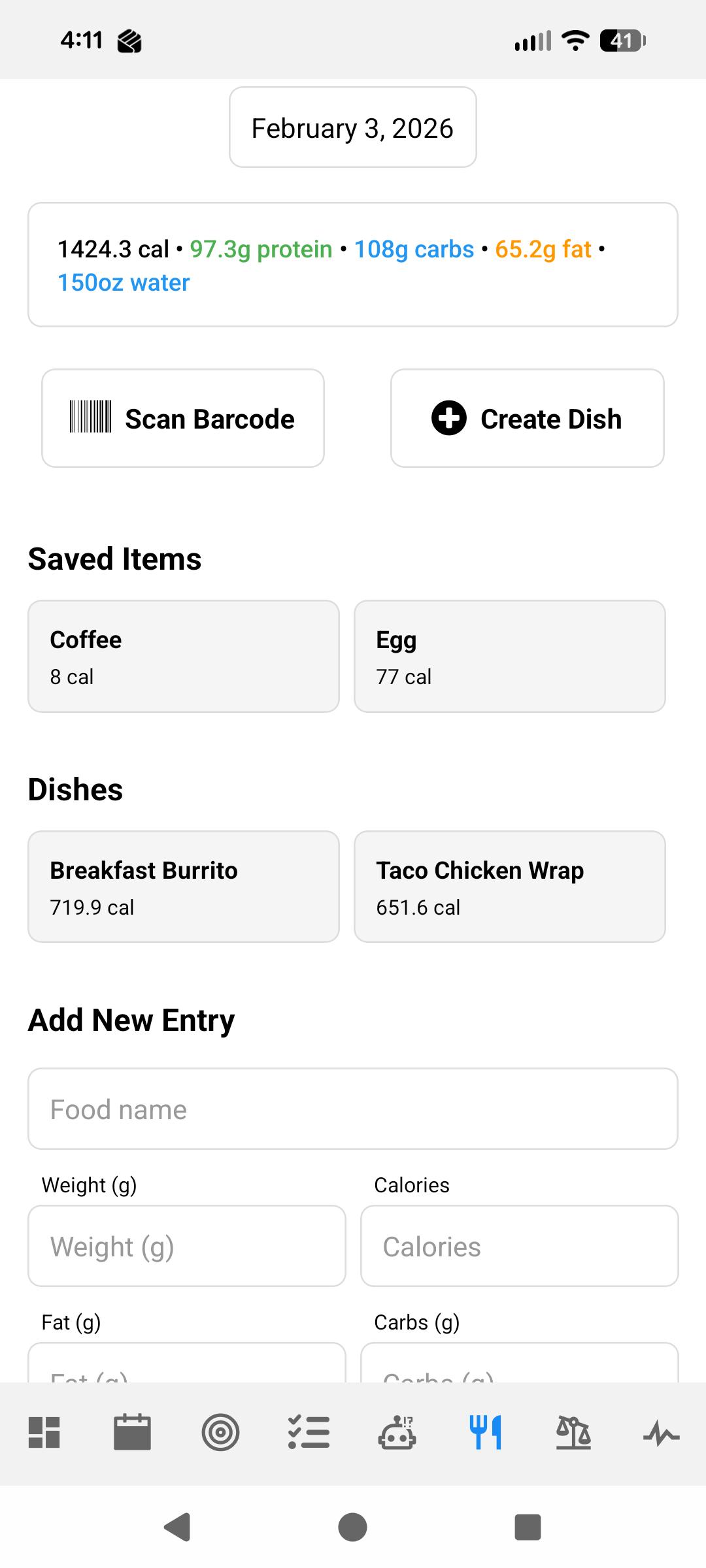
Data Entry Forms
When you need to manually enter data, the Food tab has simple forms for:
- Food Entries - Enter what you ate with calories and macros
The forms are straightforward and quick to fill out on your mobile device when you need them.
Managing Quick Add Items and Dishes
You can manage your quick add items and dishes by long pressing on them. When you long press on a quick add item or dish, you'll get options to:
- Edit - Modify the item's macros, name, or other details
- Delete - Remove the item from your saved items
This makes it easy to keep your saved food items up to date and remove items you no longer need.
The Future: Automated Data Entry
I'm working on releasing a smart food scale that automatically syncs data to Holltask Mobile. The idea is that you weigh your food, and the data just flows into the app without you having to manually enter anything. That's the goal, anyway—we'll see how it works out once it's released.